

Since the newest Fabric update it is possible to run Notebooks in the context of a Service Principal by creating a connection and running the Notebook in a Pipeline. This finally unlocks the possibility to access secrets stored in a Key Vault secured by a central Service Principal credential. Read here on why using a Key Vault important.
In this blog post I guide you trough the full end to end setup so you can implement it in your own solution.
Requirements and Set Up
To implement the access to Key Vault via Service Principal, the following steps need to be configured:
- Service Principal creation
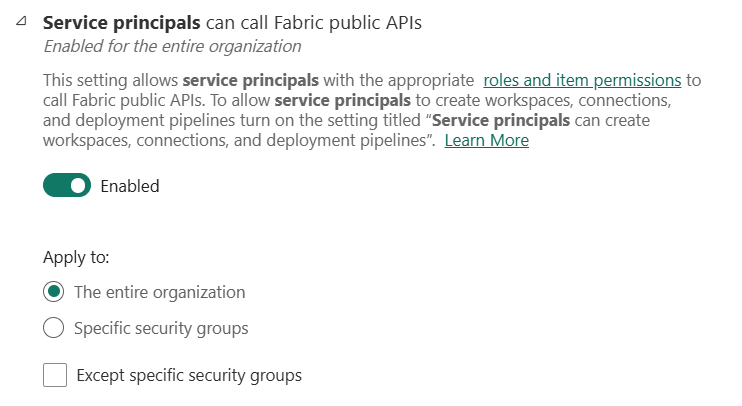
- Admin Setting “Service Principals can call Fabric public APIs”
- Fabric Permissions for the Service Principal
- Key Vault Permission for the Service Principal
1. Service Principal
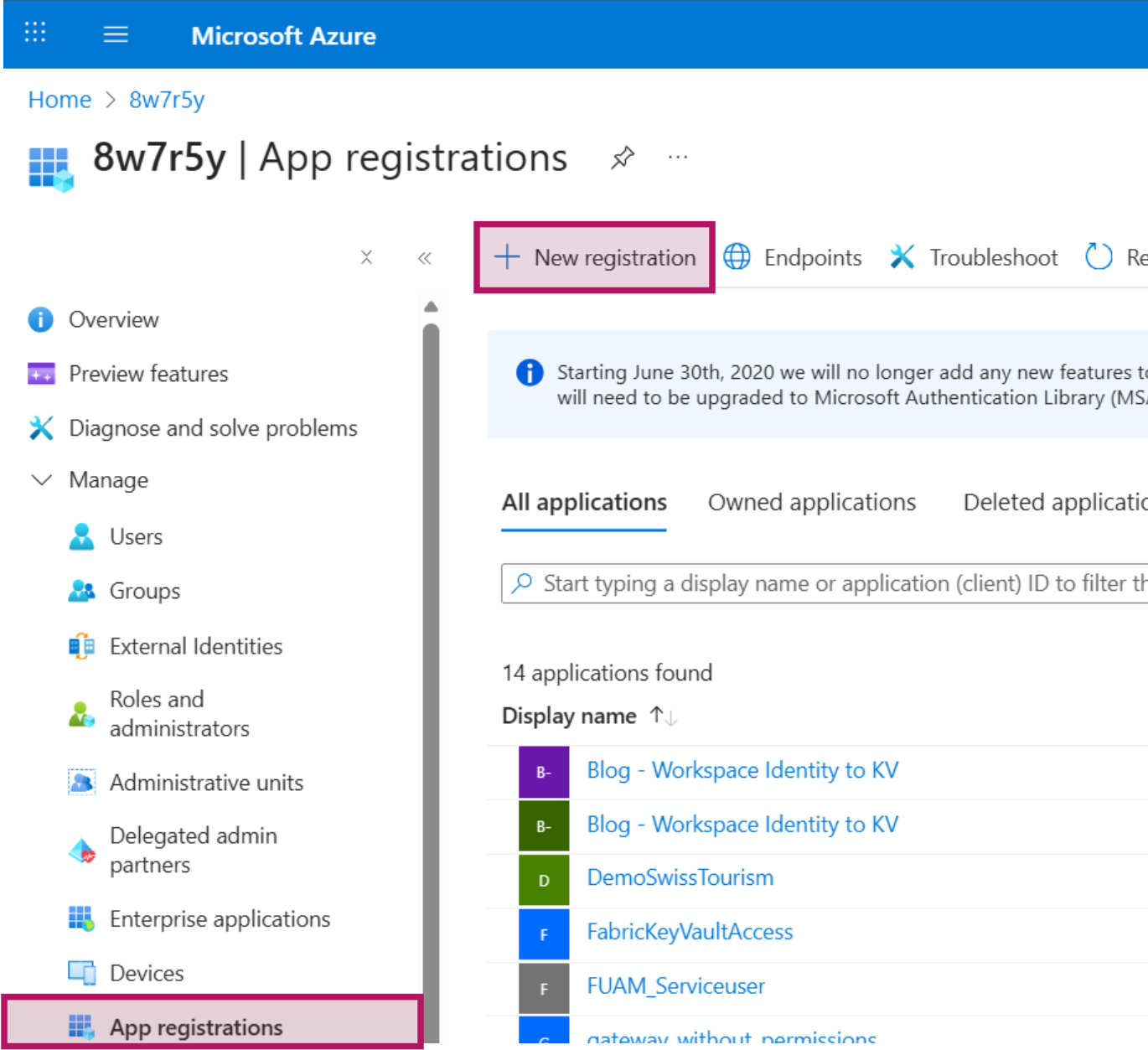
A Service Principal can be created via Powershell or in the Azure Portal. Navigate to portal.azure.com > Entra Portal > App registrations. Click on “New registration”, set a descriptive name such as “FabricNotebookWithKVAccess” and click on “Register”.

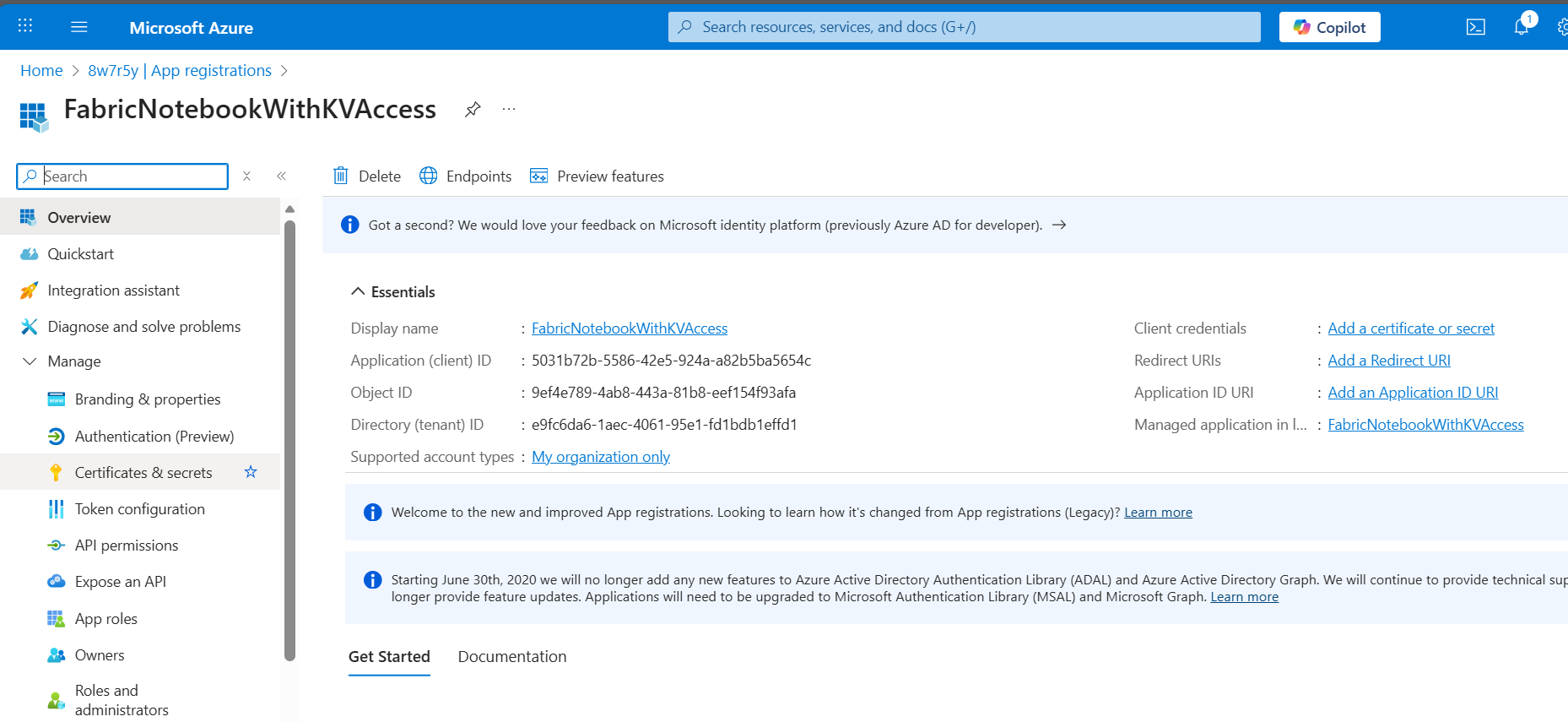
In the overview page after adding the Service Principal you can see the Application (client) ID and the Directory (tenant) ID. These will be needed later.
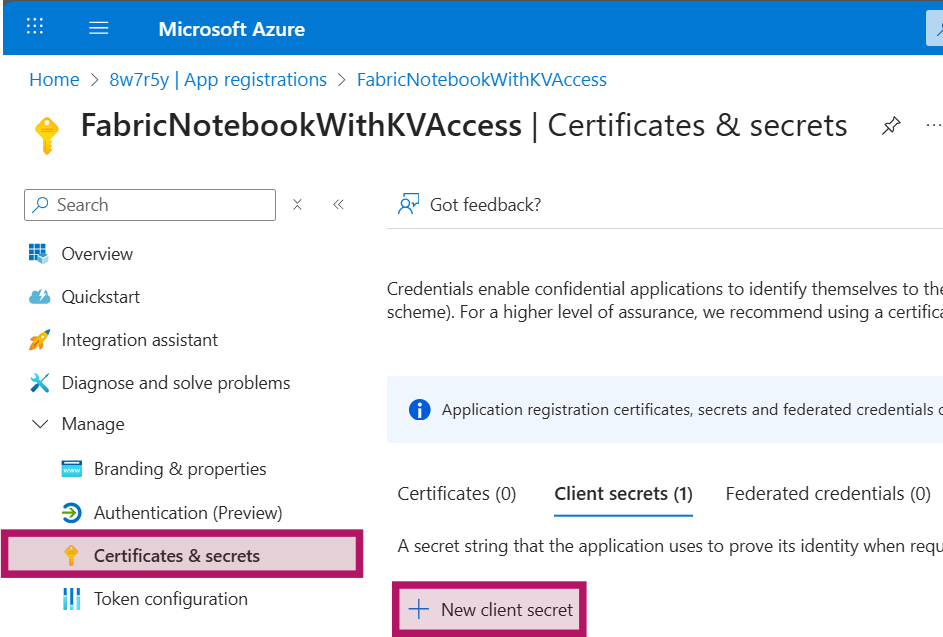
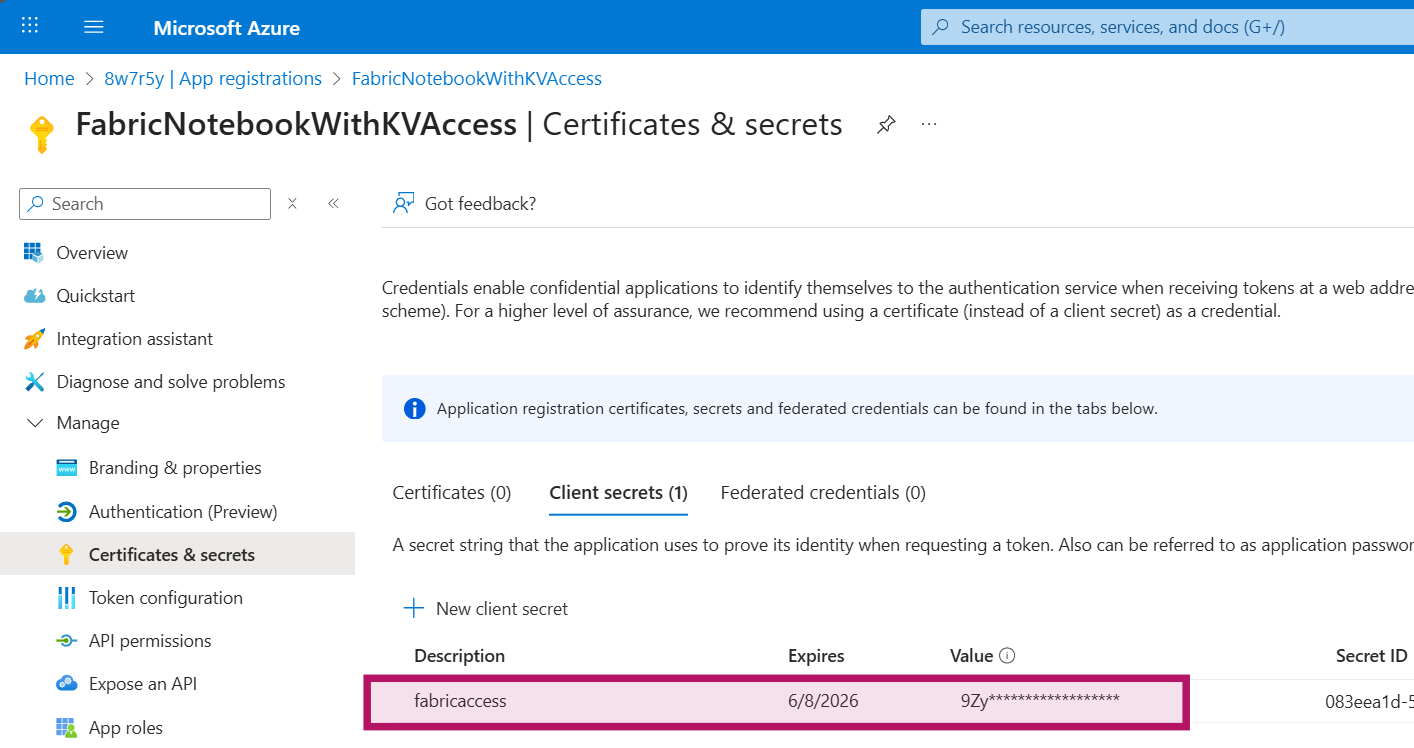
After creating the Service Principal, the next step is to set up a client secret. On the Service Principal, navigate to “Certifactes & Secrets” and press the button to add a new client secret. Give the secret a name and set the expiration days.
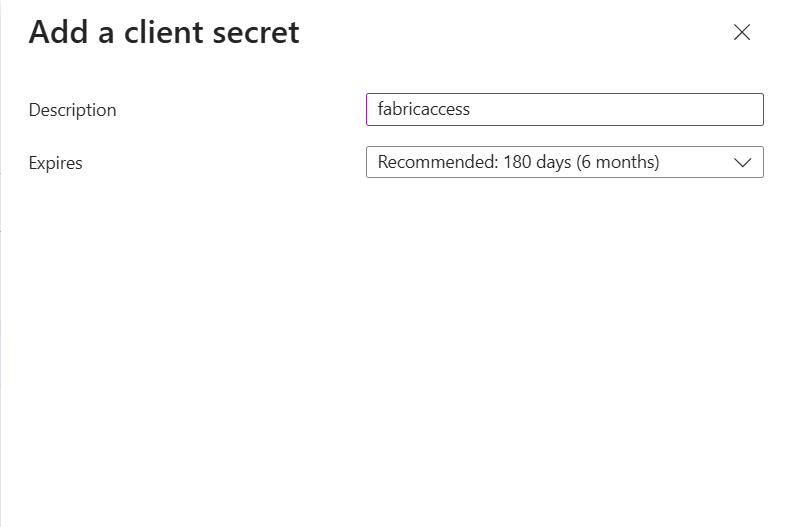
The secret will be displayed to you only directly after adding it to the Service Principal. Make a copy of it so you can use it later in the process.
2. Admin Setting
Navigate to Power BI admin center to enable the Setting “Service principals can call Fabric public APIs”. It is recommended to use a specific security group. In this blog we just enable it for the entire organization for brevity.
3. Fabric Access
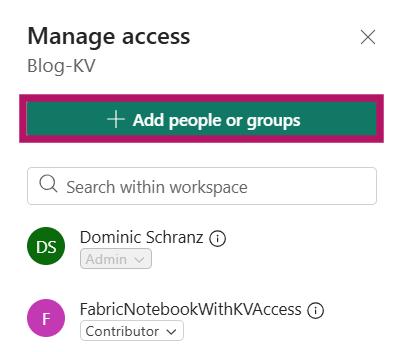
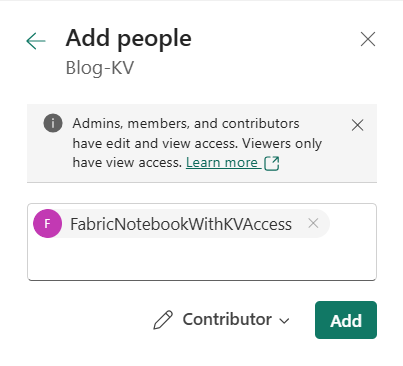
Now we can add the Service Principal to the workspace. Go to your Fabric workspace and on the top right klick on “Manage Access” > “Add people or Groups” > “Add the Service Principal”. Contributor permissions are enough for the current example.
4. Key Vault
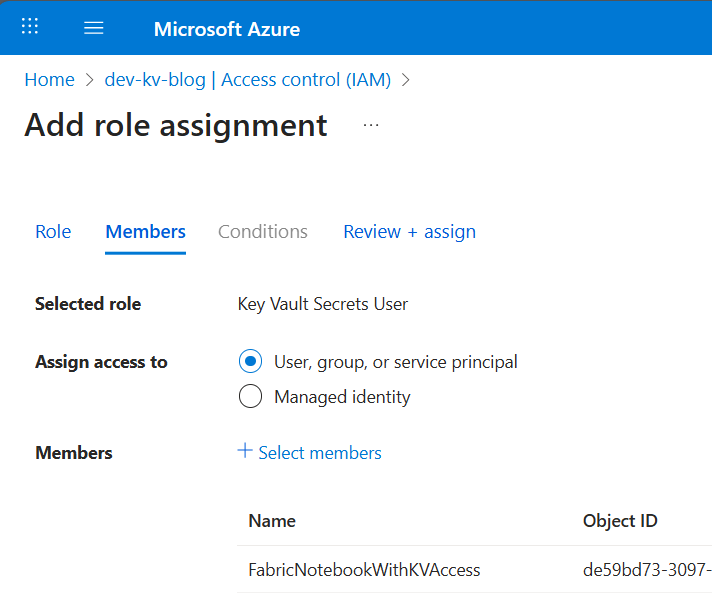
If you don’t have a Key Vault, you need to create one in your Azure tenant. The Service Principal needs to have permission to the Key Vault to read secrets. Navigate to your Key Vault and set up a new role assignment in access control (IAM). Select the role “Key Vault Secrets User” and assign it to your Service Principal.

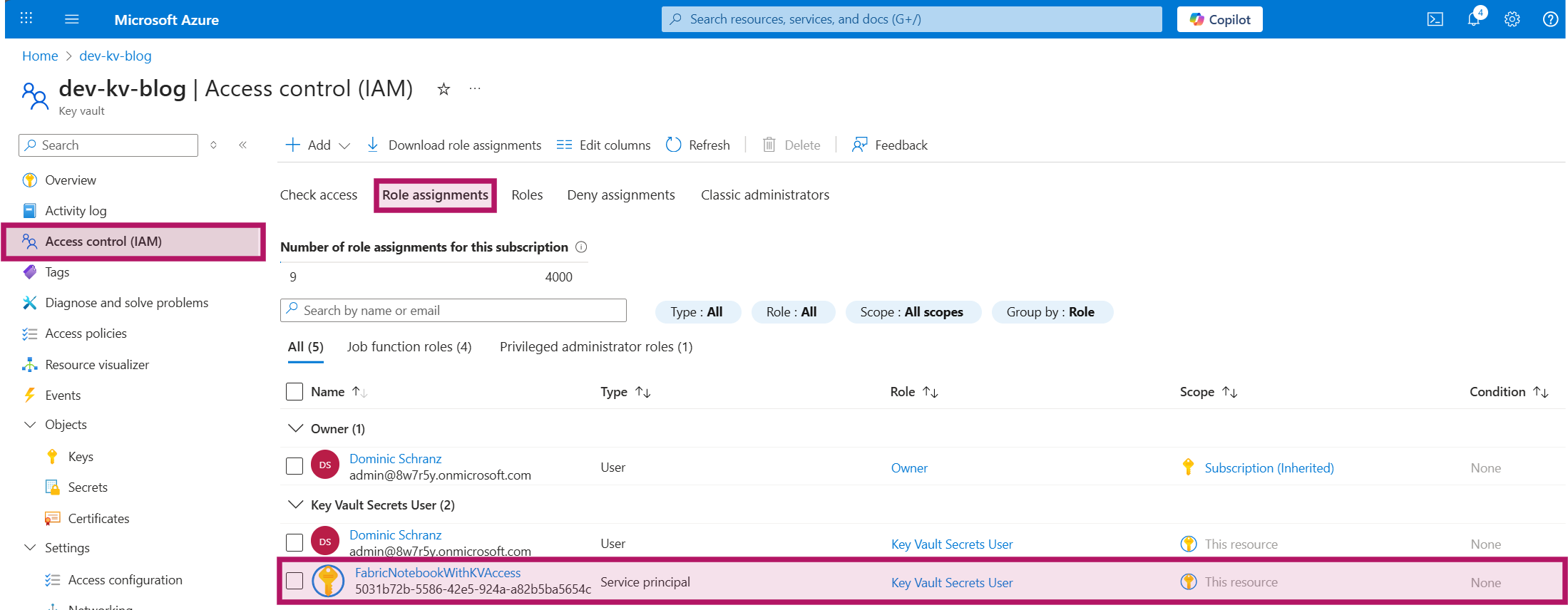
The role assignment can be validated on the “Role assignments” blade in “Access control (IAM)”:
The code assumes that your Key Vault contains a secret “fabric-blog-dummy-password” with the value “emilyspass”. Add this secret if you want to test the provided code.
Implementation
NoteBOOk
Accessing the Key Vault requires the use of Notebookutils. The following code retrieves the secret from the key vault and then calls the dummyjson api to test if the secret has been retrieved successfully:
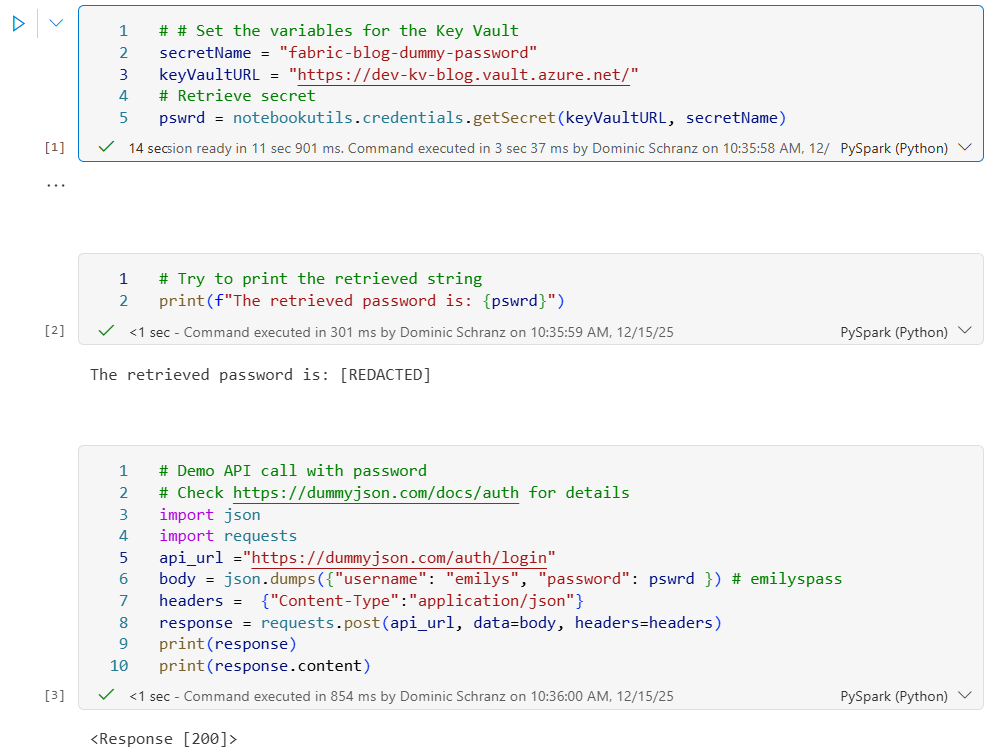
Create a new notebook in your Fabric workspace, expand the field below and copy the code. Replace the URL of the Key Vault with the one you set Permissions earlier.
Code
# Set the variables for the Key Vault
secretName = "fabric-blog-dummy-password"
keyVaultURL = "https://your_key_vault.vault.azure.net/" # use your key vault here
# Retrieve secret
pswrd = notebookutils.credentials.getSecret(keyVaultURL, secretName)

# DEPRECIATED: Retrieve secret with PyTridentTokenLibrary
# Import wrapper
# from trident_token_library_wrapper import PyTridentTokenLibrary
# Generate access token in current context
# access_token = notebookutils.credentials.getToken("keyvault")
# pswrd = PyTridentTokenLibrary.get_secret_with_token(keyVaultURL,secretName,access_token)

# Try to print the retrieved string
print(f"The retrieved password is: {pswrd}")

# Demo API call with password
# Check https://dummyjson.com/docs/auth for details
import json
import requests
api_url ="https://dummyjson.com/auth/login"
body = json.dumps({"username": "emilys", "password": pswrd }) # emilyspass
headers =  {"Content-Type":"application/json"}
response = requests.post(api_url, data=body, headers=headers)
print(response)
print(response.content)
If you want to run the code in the Notebook with your user before switching to the Service Principal, double check that the current user has the permissions to read the secret in your Vault. Otherwise the retrieval will not work. Simply being the creator of the Key Vault won’t be enough.
Pipeline
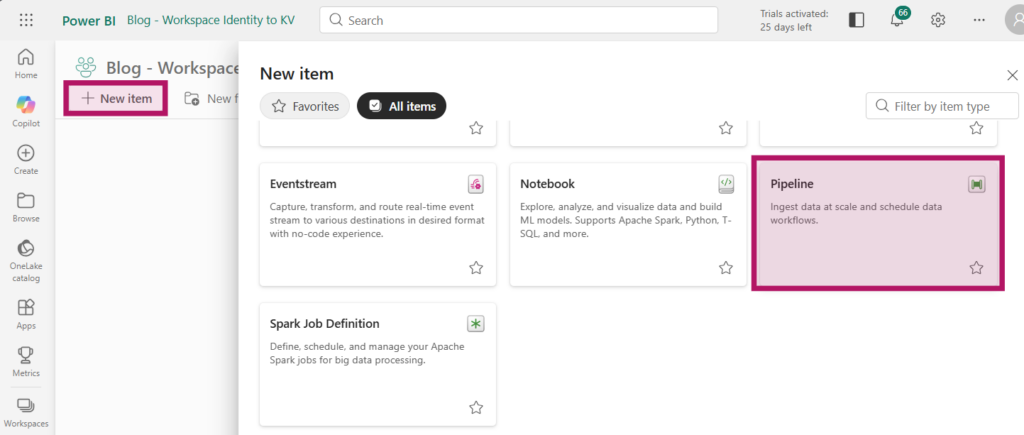
In your workspace, add a new Pipeline.
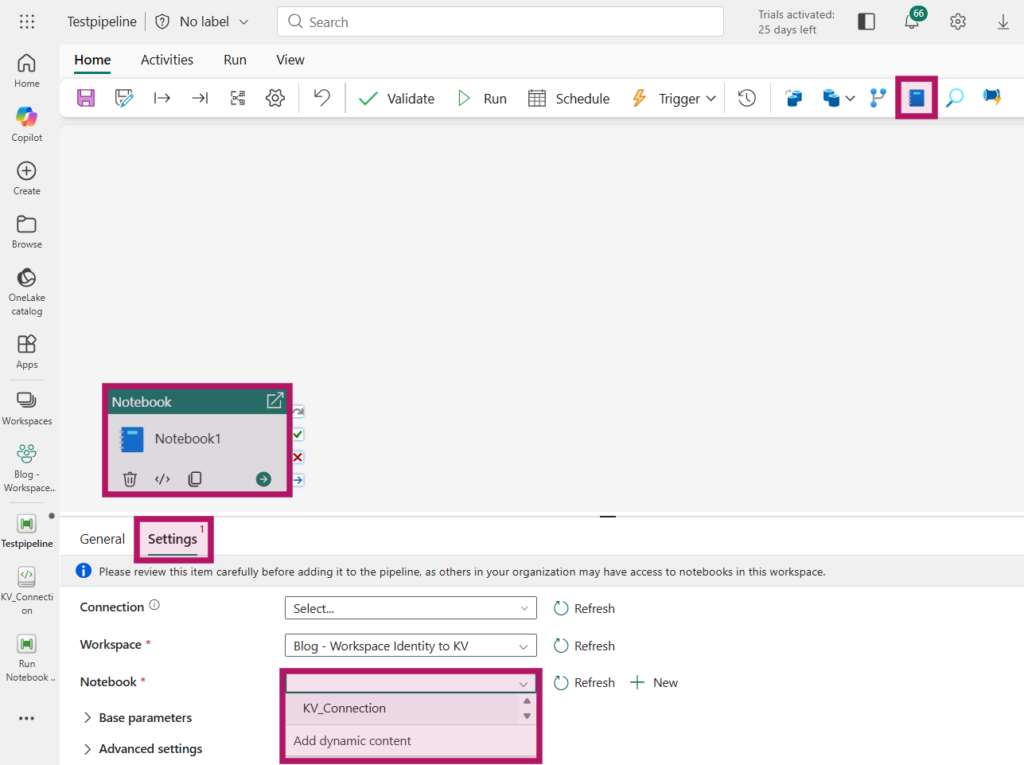
In the newly created Pipeline, select the Notebook activity and on the activity, navigate to “Settings” and select the Notebook containing the code to access the Key Vault.
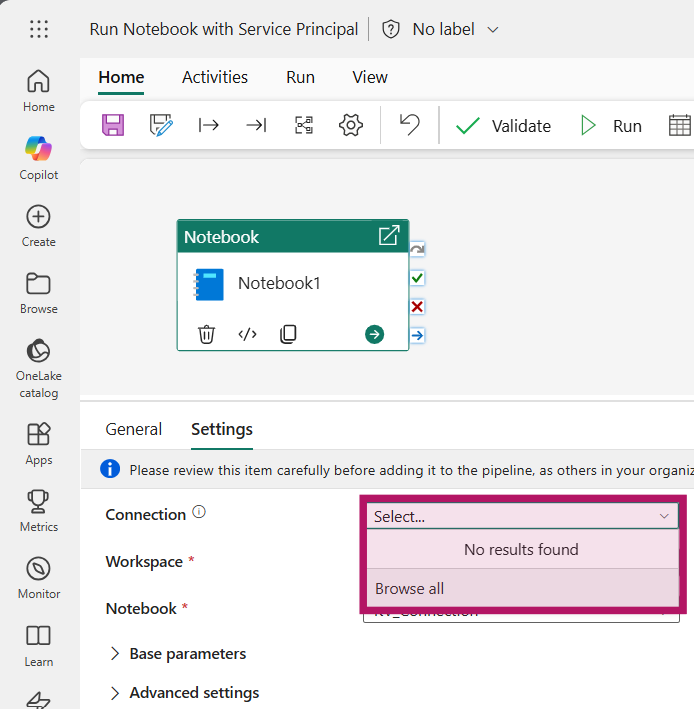
Create The Connection
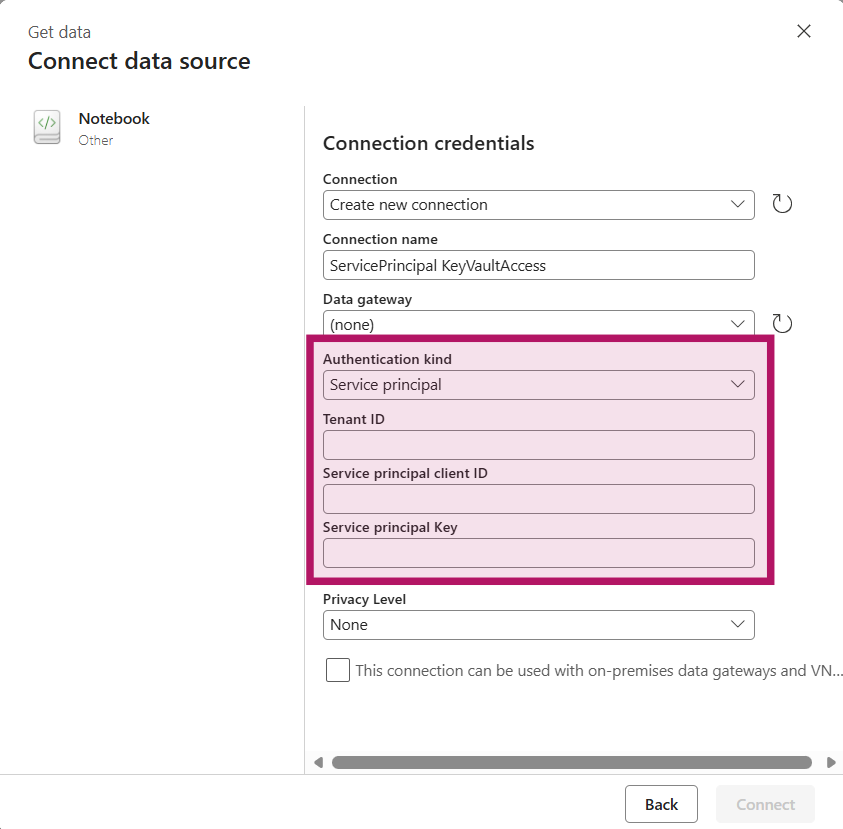
On the Notebook activity, select the Connection property and click on “Browse all”
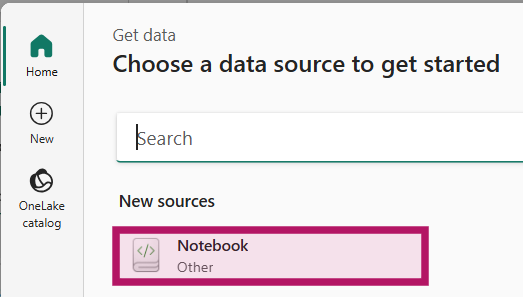
Select “Notebook” from the new sources and provide the details of your Service Principal. Tenant ID and service principal client ID can be found on the Service Principal on the overview page. The “Service principal Key” is the secret you created in the Set Up earlier. Click “Connect” in the bottom right after providing the details.
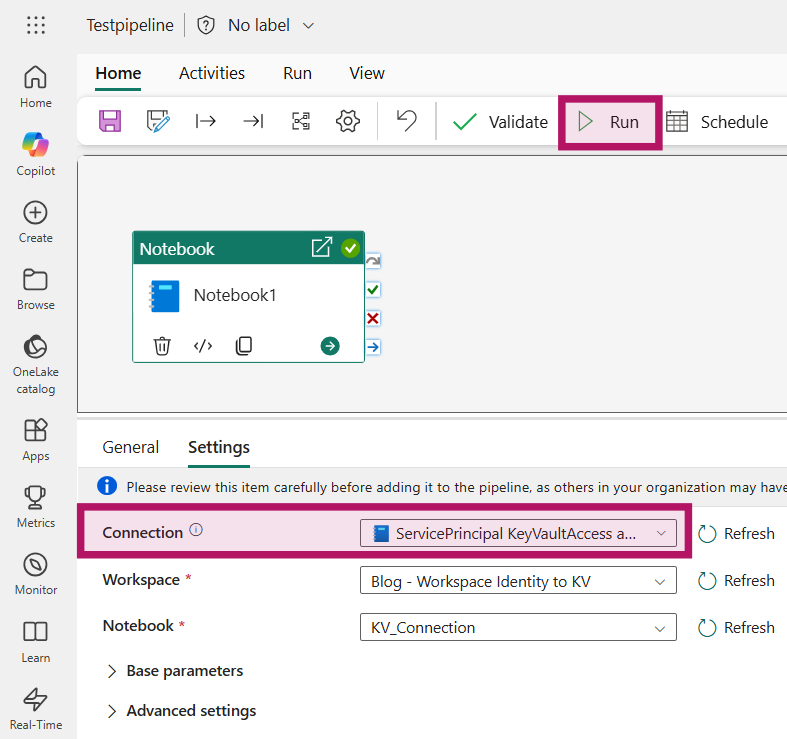
Ensure the connection is correctly set on the Notebook activity and run the Pipeline.
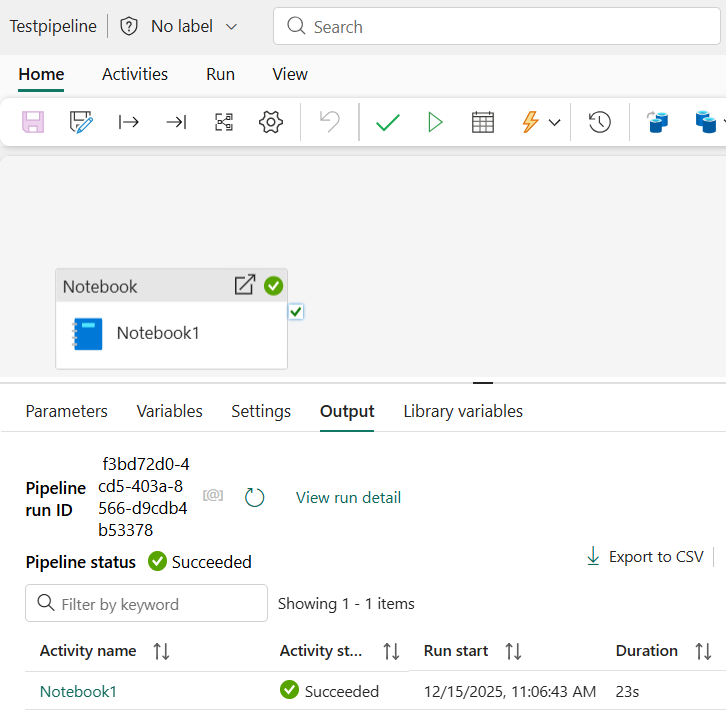
After running the Pipeline, there should be a status indicating the run was successful. You can even check the Notebook snapshot by clicking on the activity name of the run for your Notebook. If the run was not successful, ensure that you followed the setup steps. I provided some troubleshooting help below if you run into errors.
Troubleshoot
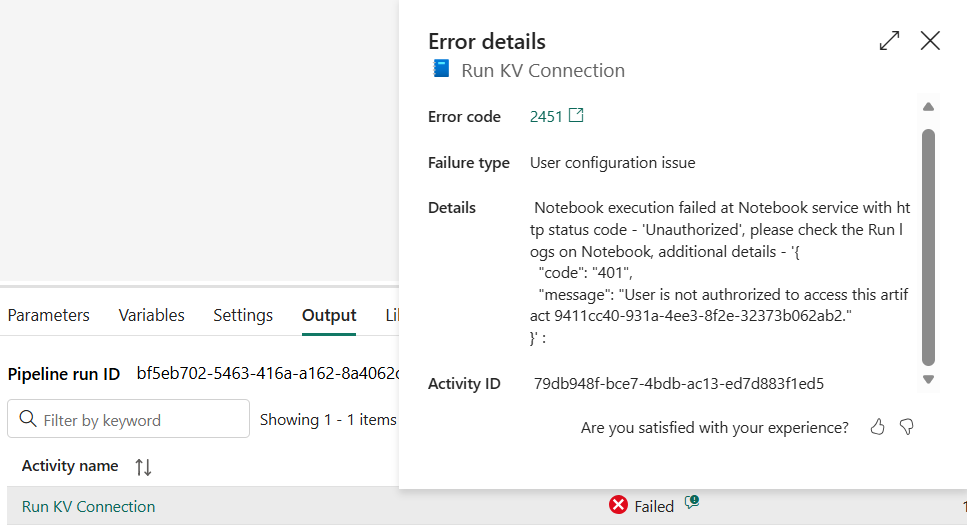
If the Service Principal is not correctly given permission to access the Notebook, an error message similar to this will show. Review that the Service Principal can access the Fabric API and is correctly given access to the Notebook.
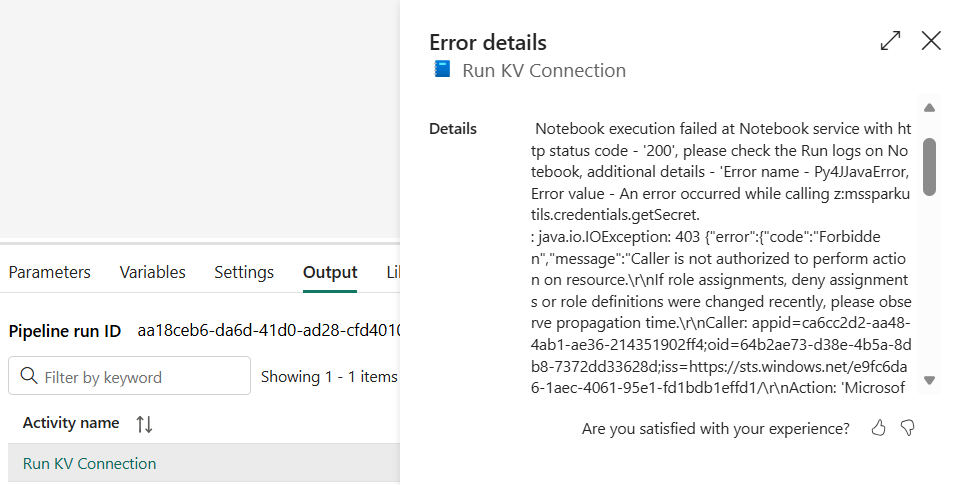
If the Key Vault permissions are not set correctly, an error message like the following will be presented. Double check if the Service Principal has access to the secret. If everything looks correct, wait 3 minutes and try again. Sometimes it can take some time for the Key Vault permissions to correctly activate.
Read more about Fabric: